The Complete Dual-Monitor Wallpaper Guide
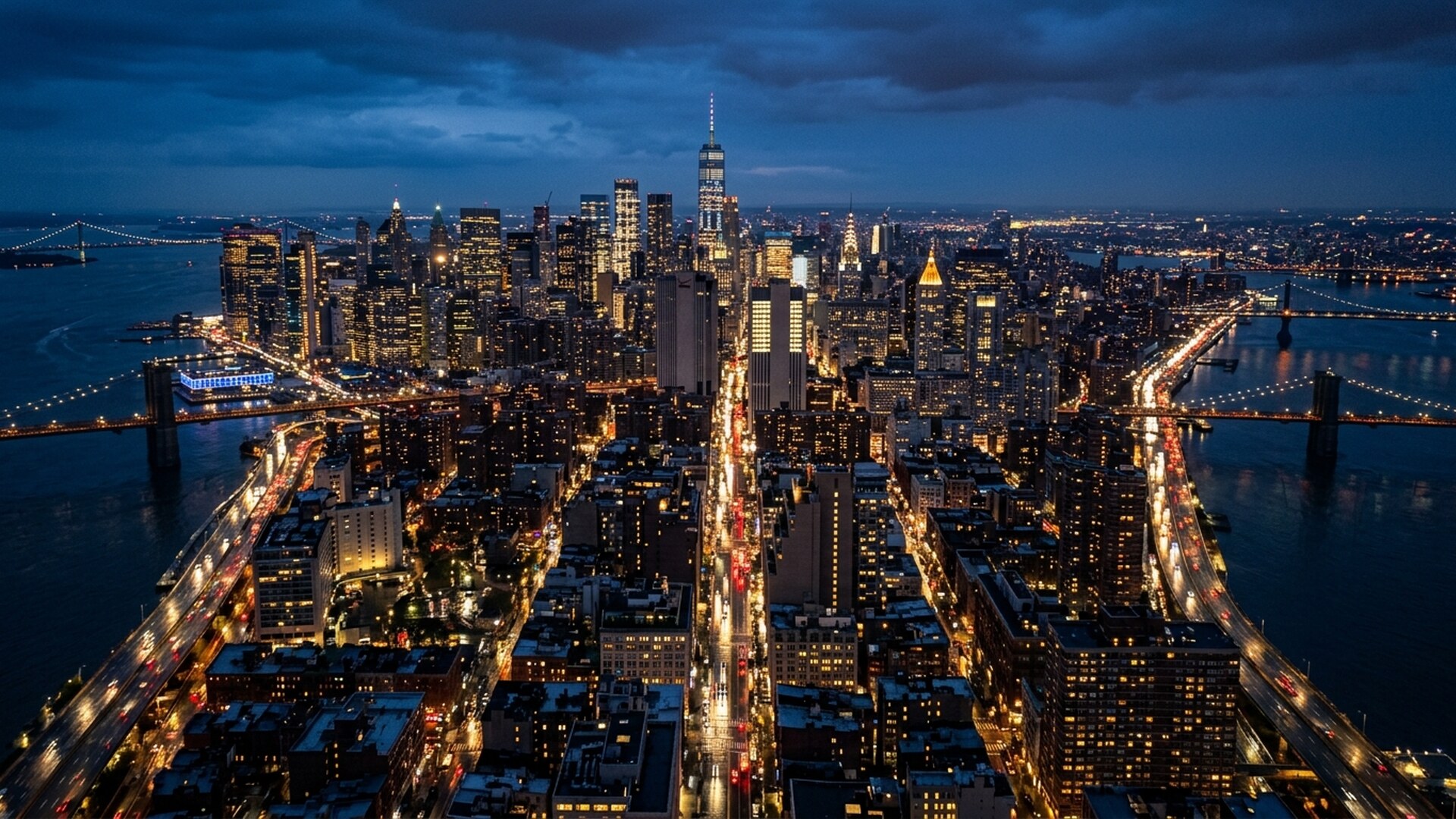
Two monitors, twice the wallpaper decisions. Windows actually handles multi-monitor setups well — the options are just buried. Here's the complete playbook.
Different wallpaper on each monitor
Open Settings → Personalisation → Background. Under "Recent images", right-click any image and choose Set for monitor 1 or Set for monitor 2. That's it — no third-party tools needed on Windows 11.
Spanning one image across both screens
Set "Choose a fit" to Span. For this you need an image at least as wide as both displays combined — for two 1080p monitors, that's 3840×1080. A standard 16:9 image will crop heavily, so choose wallpapers with a wide, continuous composition: skylines and panoramic landscapes from our City and Nature collections work brilliantly.
Mixed resolutions? Match the vibe, not the image
If your monitors differ in size or resolution, spanning rarely looks right. The cleaner approach: pick two different wallpapers from the same collection — same palette, same mood. A matched pair from our Dark collection reads as intentional rather than accidental.
Slideshow across monitors
Choose Slideshow as your background type, point it at a folder of Duskpane downloads, and Windows will rotate different images on each display. Set the interval to 30 minutes — long enough to enjoy, short enough to stay fresh.
Enjoyed this? Browse the wallpaper library or subscribe to the Friday newsletter.